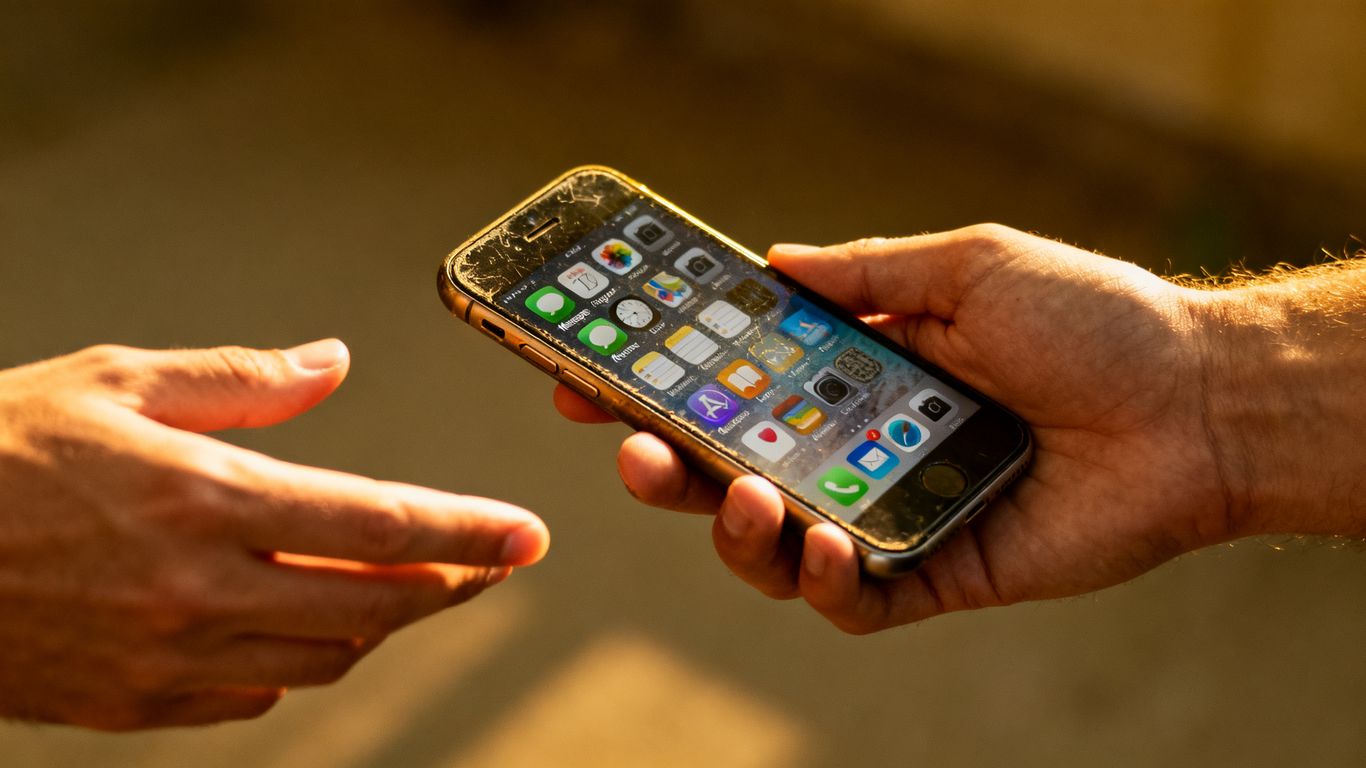
Thinking about snagging a used phone? Smart move! You can save some cash and be kinder to the planet. But hold up, before you hand over your money, you gotta make sure you're not getting a dud. This used phone buying checklist is here to help you avoid any nasty surprises. We'll walk through the important stuff so you can feel good about your purchase.
Key Takeaways
- Always check the IMEI number to make sure the phone isn't reported lost or stolen.
- Test the battery health; anything below 80% might mean you'll need a new battery soon.
- Confirm the phone is free from iCloud or Google account locks so you can actually use it.
- Give the phone a good once-over for any physical damage like dents or cracks.
- Test all the cameras, front and back, to make sure they focus and capture clear images.
1. IMEI Number
First things first, you need to check the IMEI number. This is basically the phone's unique fingerprint, and it's super important for a few reasons. You absolutely need to make sure this number isn't blacklisted, which can happen if the phone was reported lost or stolen. If it is, you won't be able to use it on most networks.
So, how do you check? It's pretty simple. Grab the phone and dial *#06# on the keypad. A 15-digit number should pop up on your screen – that's your IMEI. You'll want to compare this number with the one printed on the phone's original box, if the seller has it. Also, try to find it in the phone's settings. For iPhones, you can usually find it under Settings > General > About. For Android phones, it's often in Settings > About Phone > Status. Just make sure the number you see on screen matches the one in settings.
Here’s a quick rundown:
- Dial
*#06#to get the IMEI on screen. - Check the phone's settings for the IMEI (Settings > General > About for iPhone, or Settings > About Phone for Android).
- If you have the original box, compare the IMEI on the box to the one on the phone.
If any of these numbers don't match, or if you can't find the IMEI in the settings, that's a big red flag. It could mean the phone has been tampered with or is not legitimate. Don't walk away from a deal if the IMEI doesn't check out; just walk away from the phone itself. You can also use this IMEI to check if the phone has any outstanding balances with a carrier, which could prevent you from activating it later on [ea1c].
Remember, a clean IMEI is your ticket to a hassle-free experience. Don't skip this step, no matter how good the deal seems.
2. Battery Health
When you're looking at a used phone, the battery is a big deal. These things degrade over time, so don't expect it to be at 100% of its original capacity. You need to check its current health.
On iPhones, you can usually find this info in Settings > Battery > Battery Health & Charging. Look for "Maximum Capacity." Anything above 90% is pretty good, but the lower it gets, the less time you'll get between charges. Also, check the "Peak Performance Capability." If it says anything other than that, the phone might slow down to prevent unexpected shutdowns, and you'll probably want to replace the battery soon.
Here's a quick rundown of what to look for:
- Maximum Capacity: This tells you how much charge the battery can hold compared to when it was new. Lower numbers mean less battery life.
- Peak Performance Capability: This indicates if the phone's performance is being limited to protect the battery. If it's not at peak performance, expect slower speeds.
- Important Battery Messages: Keep an eye out for any alerts about the battery's health or if it's been replaced with a non-genuine part.
For Android phones, it's a bit different. You can often access a hidden diagnostic menu. Try dialing *#*#4636#*#* in your phone app. This should bring up a "Testing" menu where you can find battery information. It might not be as detailed as an iPhone's, but it's a start.
If the battery has been replaced, especially on an iPhone, check the "Parts and Service History" in Settings. It'll tell you if a genuine Apple part was used. If it says "Unknown," it might be a third-party battery, which could be less reliable or even a safety concern. You can learn more about iPhone parts and service history.
Don't forget to ask the seller about the battery's history. If they claim it was recently replaced, try to get proof or check the phone's settings yourself. A phone with a healthy battery will serve you much better in the long run.
3. iCloud Lock
This is a big one, and honestly, it can ruin your whole purchase if you miss it. You absolutely need to make sure the phone isn't tied to someone else's Apple ID. This is called iCloud Lock, or sometimes Activation Lock. If you see a "iPhone Locked to Owner" screen when you first turn the phone on, that means it's locked. Don't buy a phone with an active iCloud lock.
Here's how to check:
- When you meet the seller, ask them to power on the phone. If it boots up to the "Hello" screen or the passcode lock screen, that's good. If it goes straight to the "iPhone Locked to Owner" screen, walk away.
- If the phone is already set up and you see the home screen, you need to ask the seller to sign out of their Apple ID and turn off "Find My iPhone." They can do this in Settings > [Their Name] > Find My. If they can't or won't do this, it's a red flag.
- If the phone has been erased before you get there (showing the "Hello" screen), you'll need to go through the setup process yourself. During setup, if it asks for the previous owner's Apple ID and password, you know it's locked. You can check the Activation Lock status using the phone's serial number on Apple's website, though this isn't always definitive. You can also use a service to check if a device is linked to an Apple ID.
Buying a phone that's locked to an iCloud account means you'll never be able to use it, no matter what you do. It's essentially a brick. Always verify this before handing over any cash. If you buy online and it arrives locked, return it immediately.
Remember, if the seller is legitimate, they'll have no problem removing their account or showing you it's already removed. If they get defensive or make excuses, it's best to be cautious.
4. Physical Condition
Okay, so you've checked the important stuff like the IMEI and battery. Now, let's get down to the nitty-gritty: the actual physical state of the phone. This is where you can spot potential problems that might not be obvious otherwise.
First off, grab the phone and give it a good once-over. Take off any case or screen protector the seller might have on it. You're looking for any major damage. Dents or bends in the frame are a red flag because they could mean the phone took a nasty fall and might have internal issues. Try setting it down on a flat surface; if it wobbles, the frame might be bent.
Next, check the screen and the body for scratches. Minor scuffs on the back or sides are usually fine and can be expected on a used device. You can often use these to negotiate the price a bit. However, deep scratches on the screen or significant gouges on the frame are less ideal. Also, peek at the charging port – is it full of lint or damaged?
Here’s a quick checklist for your inspection:
- Screen: Look for cracks, deep scratches, or any dead pixels. Shine a light across it to catch imperfections.
- Body: Check the sides and back for dents, deep scratches, or signs of repair.
- Camera Lenses: Make sure they aren't scratched or cracked.
- Ports: Inspect the charging port and headphone jack (if applicable) for damage or excessive debris.
- Buttons: Press all the buttons – power, volume, mute switch. Do they feel mushy or stuck?
Remember, a phone that looks like it's been through a war might still work fine, but it's more likely to have hidden problems. Be realistic about what you're willing to accept for the price.
If the phone has an OLED screen (common on newer models), you'll want to look for burn-in. This is when a faint image is permanently stuck on the screen, usually from displaying the same static graphic for too long. You can sometimes spot this by looking at a solid grey or white screen. If you see it, it's a cosmetic issue that might bother you later. For LCD screens, just make sure the light is even across the display. You can find out more about checking the display condition in our detailed guide.
Don't forget to check the charger if it's included. Make sure the cable isn't frayed and the adapter isn't damaged. A damaged charger is a safety hazard and another cost you'll have to factor in.
5. Display Quality
The screen is what you'll be looking at most of the time, so it needs to be in good shape. Don't skip this step, even if the phone looks great otherwise.
First, crank the brightness all the way up and then all the way down. Look for any weird flickering or dim spots, especially around the edges. If it's an older LCD screen, you want to make sure the backlight is even. For OLED screens, which are common on newer phones, you need to check for burn-in. This looks like a faint, permanent ghost image of something that was on the screen for a long time, like a keyboard or status bar icons. You can spot this by looking at a solid white or grey screen.
Here’s a quick way to check:
- Open a plain white image or a white screen test video.
- Look for discoloration, lines, or dead pixels (black spots that don't light up).
- Try a black screen to check for light bleed around the edges.
Next, test the touch functionality. Swipe around the entire screen, paying attention to the corners and edges. Try multi-touch gestures, like pinching to zoom in a photo. Make sure there's no "ghost touch" where the screen registers touches you didn't make, or areas that don't respond at all. A screen that was replaced might not feel as smooth or bright as the original, so keep that in mind. You can often check if a display is original or a duplicate by looking for signs like faded colors or a delayed touch response [de28].
A screen that feels laggy or has dead spots is a major red flag. It's not just annoying; it can make using certain apps impossible and is usually an expensive fix.
6. Network Compatibility
This is a big one. You want to make sure the phone you're buying actually works with your mobile carrier. Don't assume an unlocked phone means it'll work everywhere. While most unlocked phones are pretty universal these days, it's always best to double-check.
Here's how you can do it:
- Ask the seller if the phone is unlocked. If it's an iPhone, you can often check this yourself. Go to Settings > General > About. Scroll down to 'Carrier Lock.' If it says 'No SIM restrictions,' you're golden. If it's locked to a specific carrier, it won't work with yours unless you get it unlocked first.
- Get the IMEI number. This is the phone's unique serial number. You can usually find it by dialing *#06# on the phone's keypad, or it might be listed in the phone's settings (often under 'About Phone' or 'General > About').
- Use an online checker. Once you have the IMEI, you can use a free online tool to see if it's compatible with your carrier. Many carrier websites, like T-Mobile's, have a section where you can enter the IMEI to check compatibility. You can also check your current carrier's website to see if they have a tool for this.
It's also worth asking if the phone has any outstanding balances or is currently tied to an active account. If a previous owner didn't finish paying off the phone, the carrier could eventually block it, making it useless for you. You don't want to buy a phone only to find out it's been blacklisted.
Make sure you test this before you hand over any cash. Bringing your own SIM card to the meetup is the best way to confirm it connects to your network and can make calls and use data.
7. Camera Performance
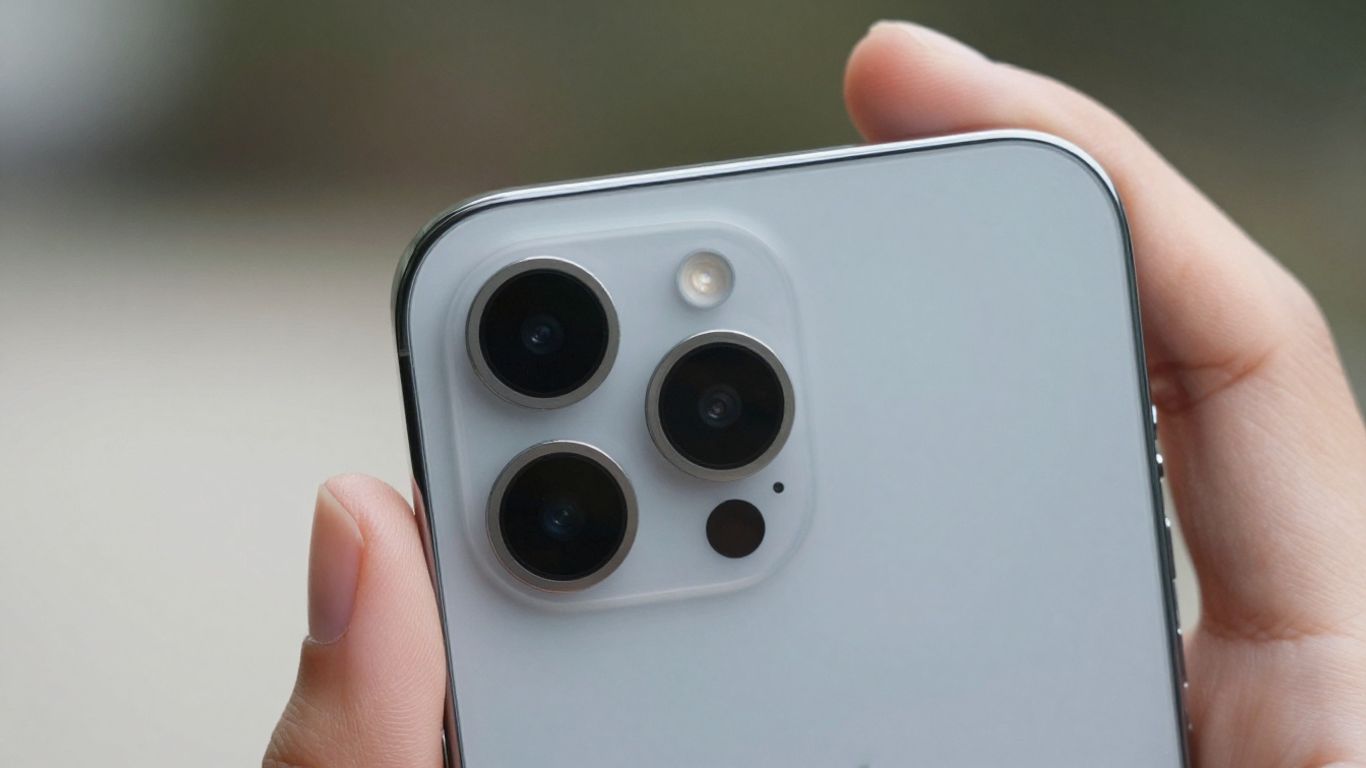
You'll want to make sure the cameras on the phone are working properly. After all, that's a big reason many people buy these devices.
Here's how to test them:
- Open the Camera app. Switch between the front and rear cameras. If the phone has multiple rear lenses (like ultra-wide or telephoto), test each one. Make sure all lenses are clear and free of scratches.
- Take a few photos in different lighting conditions. Snap shots in bright light and then in dimmer settings. Tap on different parts of the screen to check if the focus adjusts correctly. Look closely at the photos afterward – they should be sharp, not blurry or grainy.
- Record a short video. Play it back and listen for clear audio and smooth video playback.
Don't forget to check the camera's performance in low light. This is often where cheaper or older phone cameras struggle the most, showing a lot of noise or muddy details. A good used phone should still capture usable shots even when it's not super bright out.
If you're serious about mobile photography, you might want to check out some of the best used camera phones out there. It's worth knowing what to look for in a device that's specifically good for taking pictures.
8. Face ID
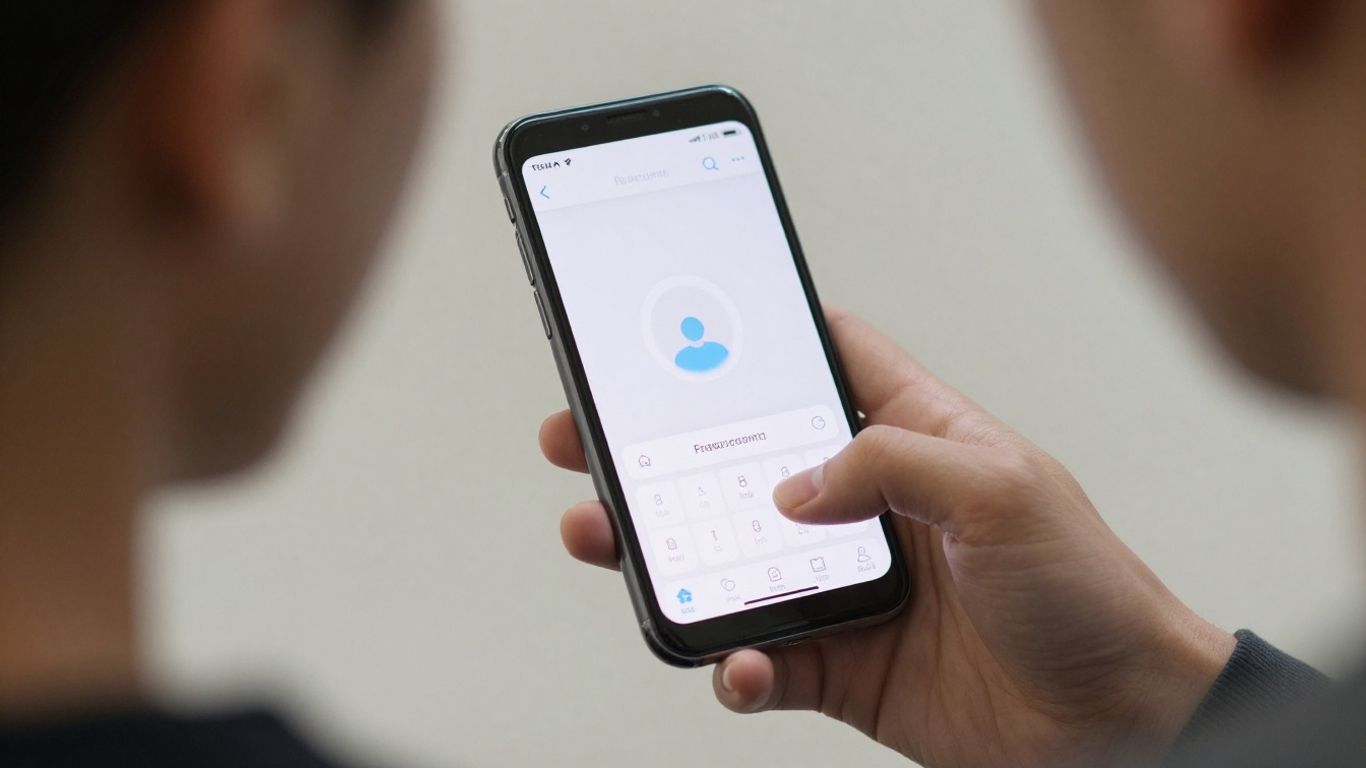
Face ID is a pretty slick way to unlock your iPhone and authorize payments, but it's also something you absolutely need to test before you buy. If it's not working right, it can be a real pain to fix.
First off, you need to ask the seller to sign into their Apple ID so you can actually test the phone. Once it's set up and you're looking at the Home screen, go to Settings > Face ID & Passcode. This is where you can check if Face ID is properly configured and see what features are enabled for it. If the seller can't or won't do this, that's a big red flag.
Here’s how to give it a good once-over:
- Try unlocking the phone: Ask the seller to set up Face ID with their face. Then, lock the phone and try unlocking it yourself. It should recognize the face and unlock quickly. If it struggles or fails repeatedly, something's up.
- Test it in different lighting: Try Face ID in both bright light and dimmer conditions. It should still work reliably.
- Check for Face ID errors: While in the Face ID & Passcode settings, look for any error messages. Sometimes, a faulty sensor or component will throw up a specific warning.
If you see an error message like "Face ID is not available" or "Face ID could not be enabled on this iPhone," it's a strong indicator of a hardware problem. This usually means the phone has been dropped or had some kind of internal damage. It's often not repairable by third parties and can be very expensive to fix through Apple.
If the phone has been erased and you see the "Hello" screen, you won't be able to test Face ID until you set it up yourself. Be aware that if the phone is "iPhone Locked to Owner," you can't use it at all, and you should definitely walk away. Don't buy a used iPhone if Activation Lock is enabled.
Face ID is a cool way to unlock your phone, but it's not perfect. Sometimes it might not recognize you, especially if you're wearing a mask or have sunglasses on. For a smarter way to check any online listing before you buy, visit our website. We help you avoid bad deals and find the best prices.
So, You're Ready to Buy That Used Phone?
Alright, you've gone through the list, checked the important stuff, and hopefully found a great deal on a used phone. Remember, taking a little extra time to look things over can save you a lot of headaches later. Don't be afraid to walk away if something doesn't feel right – there are plenty of other phones out there. Happy hunting, and enjoy your new (to you) device!
Frequently Asked Questions
What's an IMEI number and why should I care about it?
Think of the IMEI number as a phone's unique fingerprint. It's a special code that identifies your device. You'll want to check this number to make sure the phone isn't reported as lost or stolen. If it is, it might get blocked, and you won't be able to use it. You can usually find it by dialing *#06# on the phone or by looking in the settings.
How can I tell if the battery is still good?
Batteries don't last forever, and a worn-out one can be a bummer. For iPhones, you can check the 'Battery Health' in the settings. If the 'Maximum Capacity' is below 80%, you might need to replace the battery pretty soon, which costs extra money. It's good to aim for a phone with battery health of 85% or higher.
What's an iCloud lock, and how do I avoid it?
An iCloud lock (or Activation Lock) is a security feature that prevents anyone else from using your iPhone if it's lost or stolen. If the phone you're looking at is still linked to the previous owner's Apple ID, you won't be able to use it, even after resetting it. Always ask the seller to remove their Apple ID and erase the phone before you buy it.
What kind of physical damage should I look out for?
Give the phone a good once-over. Look for big dents, cracks (especially near the camera or screen edges), or if the phone seems bent. While small scratches are common on used phones, major physical damage could mean there are internal problems too. Check that all the buttons feel right and aren't loose.
How do I check if the screen is working properly?
The screen is a big part of your phone! Test it by swiping around all areas to make sure the touch works everywhere. Check it at both full brightness and low brightness. Look for any weird colors, dead spots (pixels that don't light up), or flickering. If the screen looks a bit off or doesn't feel smooth, it might have been replaced with a cheaper one.
Will this phone work with my phone company?
You'll want to make sure the phone can connect to your mobile provider. Most unlocked phones work with any network, but it's smart to confirm. For iPhones, you can check 'Carrier Lock' in the settings. If it says 'No SIM restrictions,' you're usually good to go with any carrier in the US.
Are the cameras any good?
Open up the camera app and test both the front and back cameras. Snap a few photos and maybe record a short video. Make sure the focus works quickly and that the pictures aren't blurry or have weird spots. Also, check if the flash fires correctly. If the camera seems fuzzy or slow, it might have been damaged before.
Does Face ID (or Touch ID) work?
If the phone has Face ID or Touch ID, try setting it up yourself (or have the seller do it). Lock and unlock the phone a few times to see if the fingerprint scanner or facial recognition works reliably. Fixing these features can be really expensive, so it's important they work right out of the box.